Menu

The Menu Button is in the top right of the screen. When pressed, it expands to reveal several options.
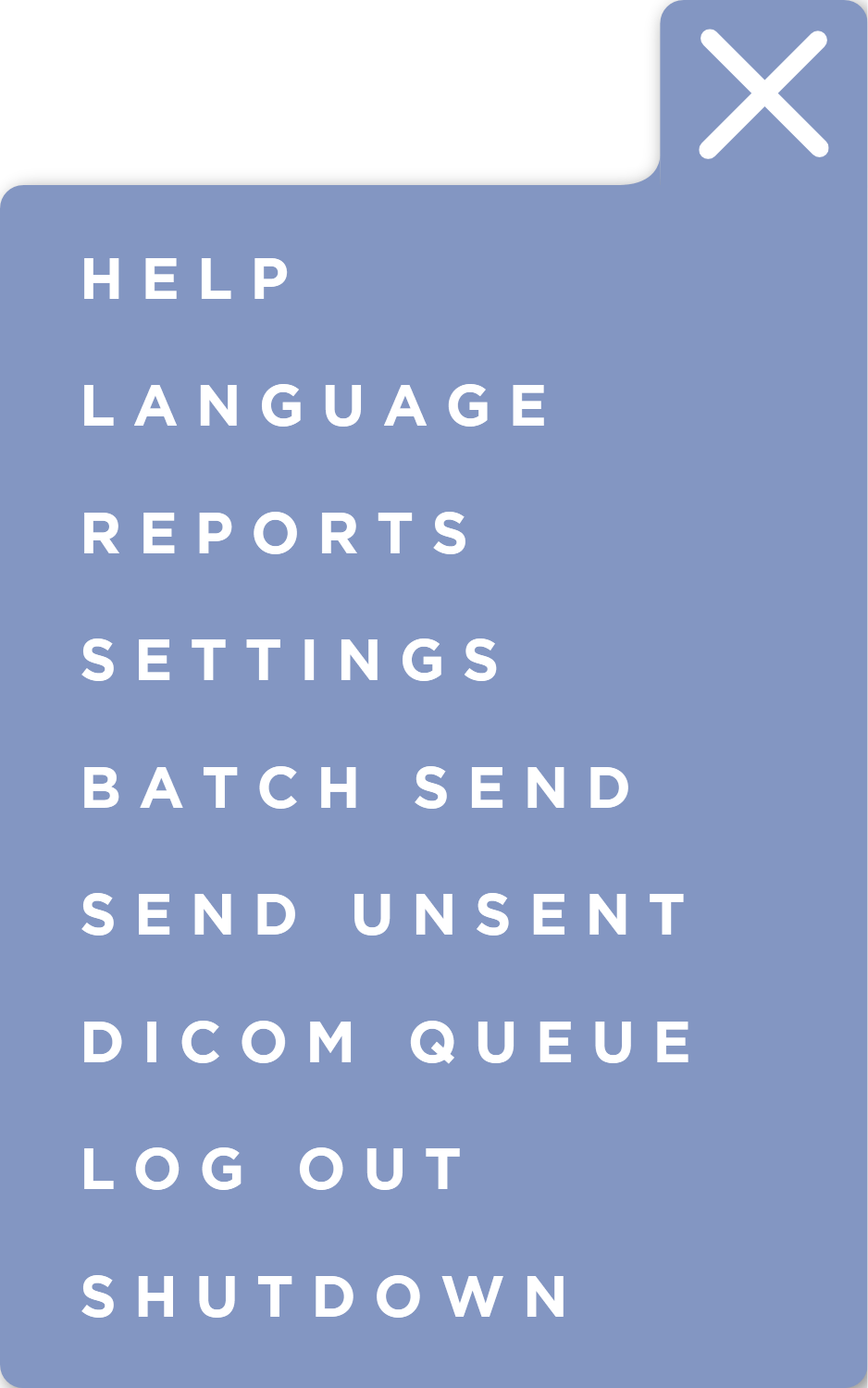
To dismiss the menu, press the X button or press outside the menu.
Help
This option will open the Help Options.
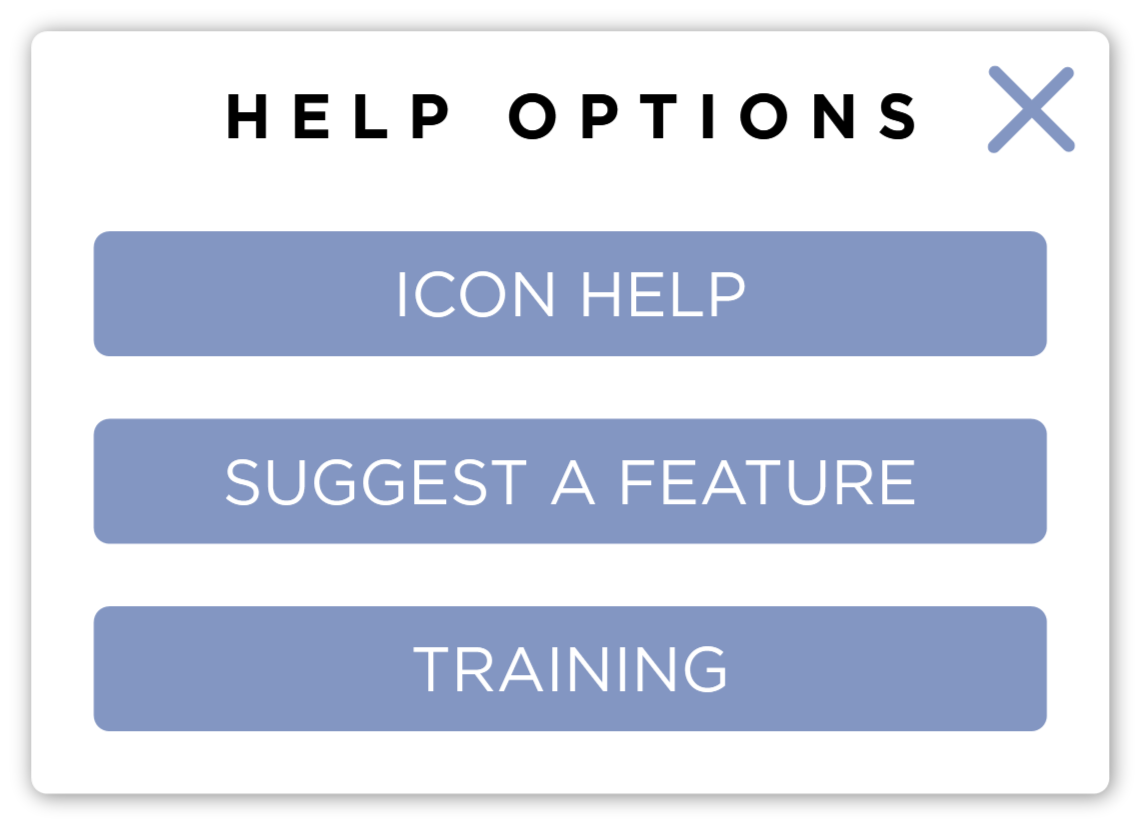
Icon Help
This will display an overview of the currently displayed icons on the screen and label them with their functions.
Suggest a Feature
This will open a browser and take you to Sound's UserVoice where you can suggest a feature for SmartDR Fusion and see features other users have suggested.
We develop this software for you the user. Without your feedback we could not continue to improve SmartDR Fusion. We are always taking suggestions for new features and improvement we can make. If you have an idea for the software, please, don't hesitate to let us know!
Training
This will open a browser and take you to this website.
Language
This will open the Language Selection dialog. SmartDR Fusion supports multiple languages including:
 English
 French
 German
 Spanish
 Italian
 Portuguese (Brazilian)
 Portuguese (European)
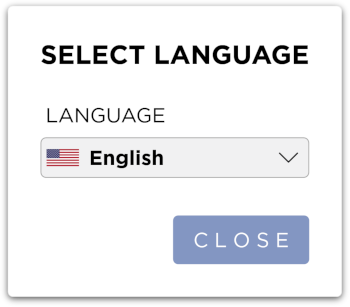
When you select a different language, the entire application interface will display in your chosen language.
Your language selection will be remembered for future sessions.
Press the Close button to close the dialog.
Reports
This option will take you to the Reports Screen.
Settings
This option will take you to the Settings Screen.
Batch Send
This will open the Batch Export Form.
Send Unsent
This will send all studies that have images that have not been DICOM sent to the Default DICOM Storage Server.
This will only send images that have not been sent to the Default DICOM Storage Server. If all images have already been sent, you will see a notification indicating that there are no unsent studies.
Images that have been modified since they were last sent will be re-sent.
The default DICOM Storage Server can be configured in the DICOM section of the Settings Screen
DICOM Queue
This will open the DICOM Queue.
Log Out
This will log you out of the software and take you back to the Login Screen.
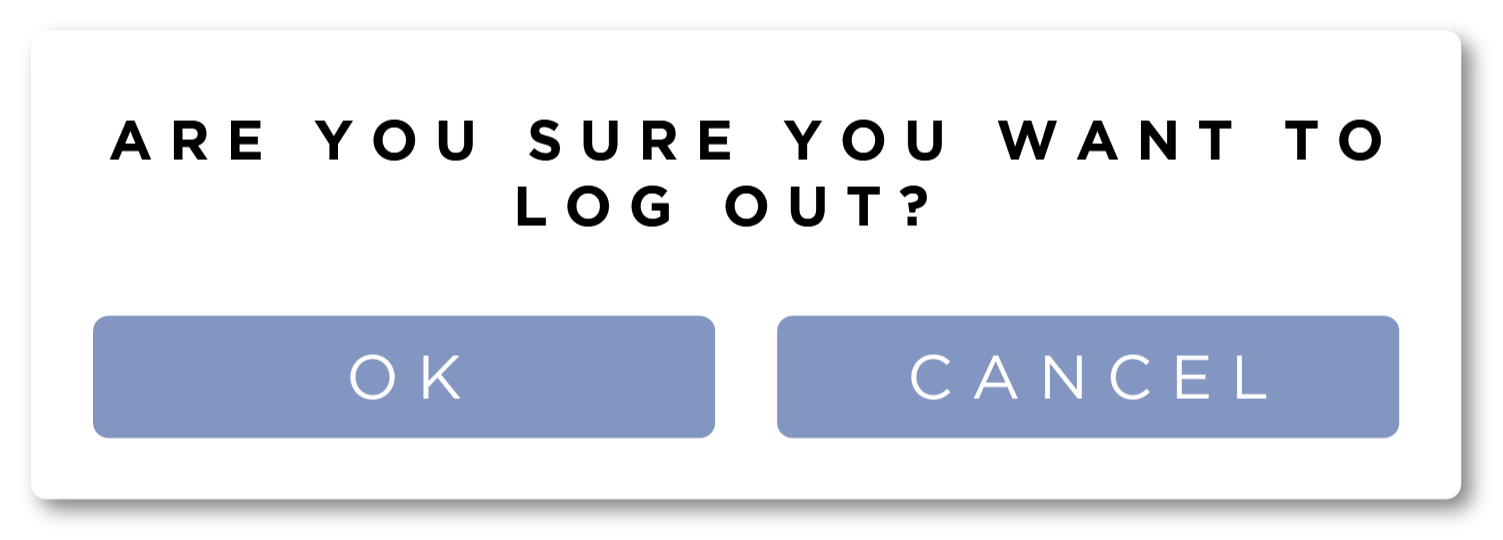
You will be prompted if you are sure you want to log out. Press the OK button to continue logging out. Press the Cancel button to stay logged into the system.
Shutdown
This will shutdown the system.
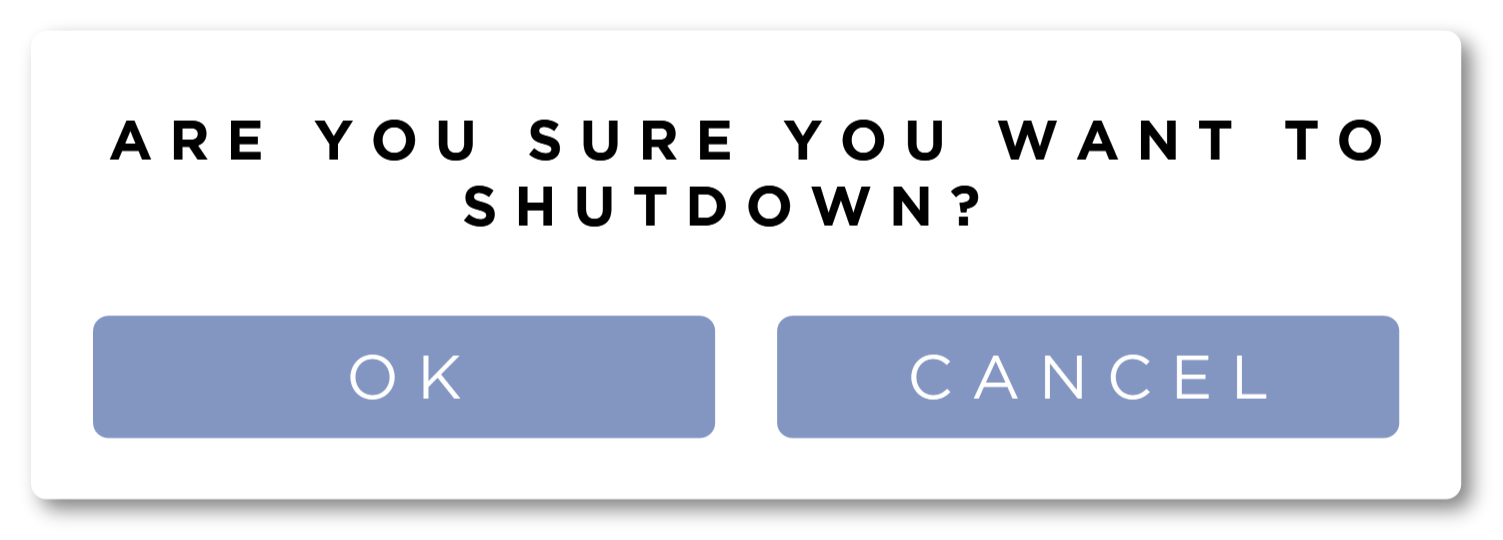
You will be prompted if you are sure you want to shutdown. Press teh OK button to continue shutting down. Press the Cancel button to stop the shutdown.
This will shut down the PC.