Users
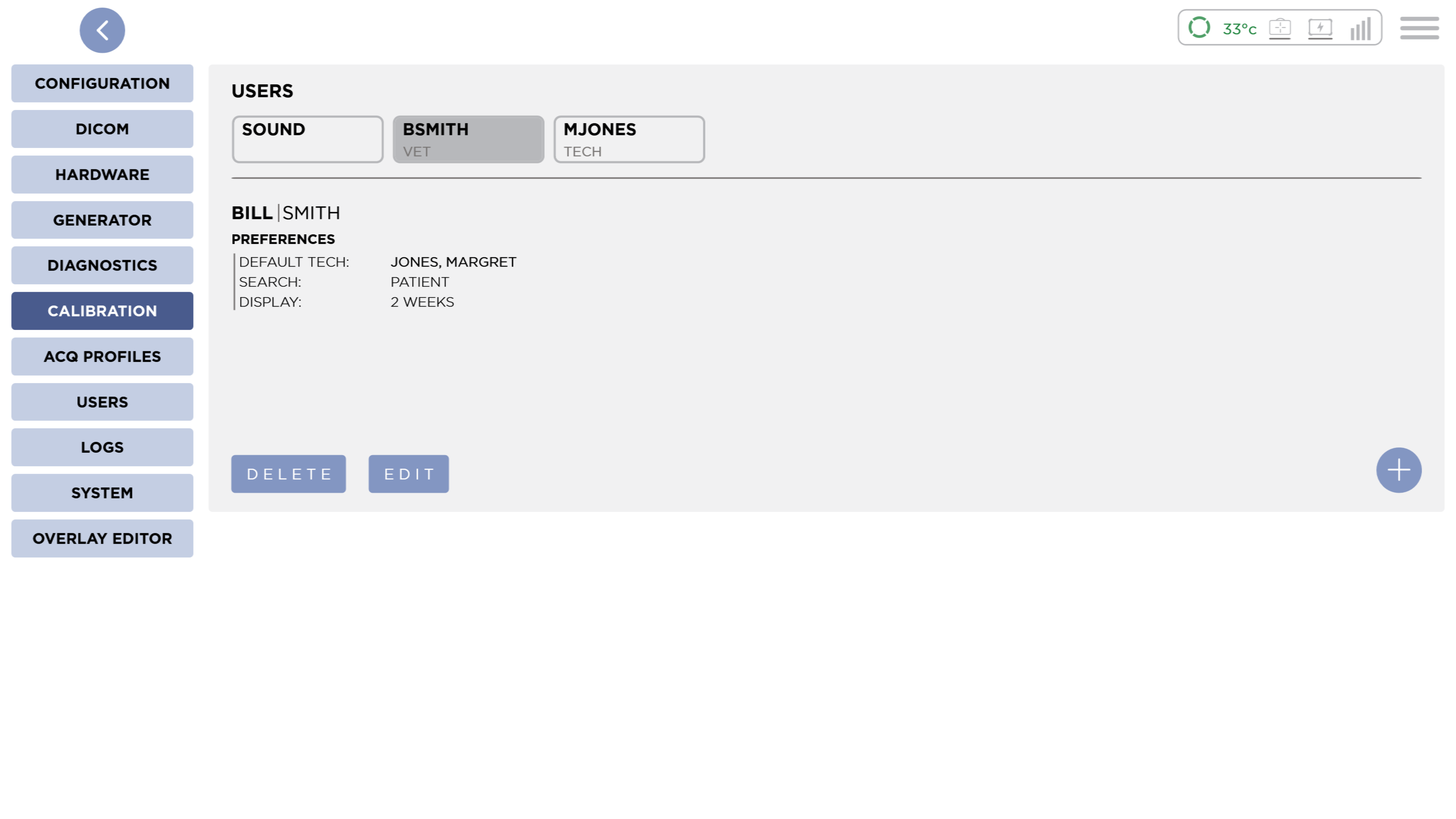
This is where you can manage users.
Add a User

Press the Add Button to add a new user. This will open a dialog.
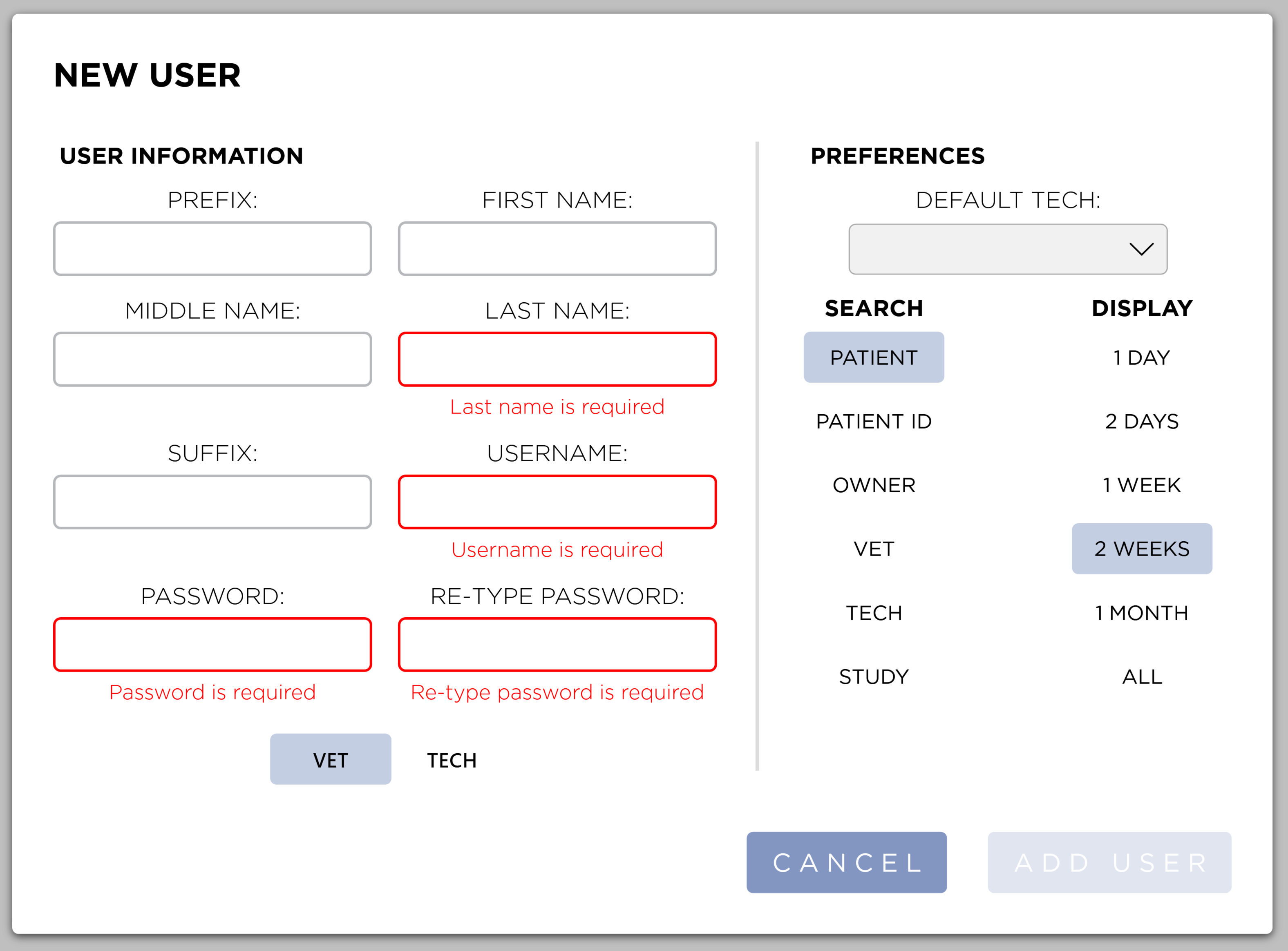
Enter the required information and select a User Role (Vet or Tech). When you are finished, press the Add User button. Pressing the Cancel button will close the dialog without saving.
Only the Sound user can Add users.
User Preferences
Each user can have different search filters and date ranges when searching the Patient List or Worklist. In addition, Vet users can have a Default Tech assigned to a study. You can select one from the combobox. Tech users can have a Default Vet assigned to a study. You can select one from the combobox.
Edit a User
Select the User you wish to edit from the list. Press the edit button to open the Edit dialog.
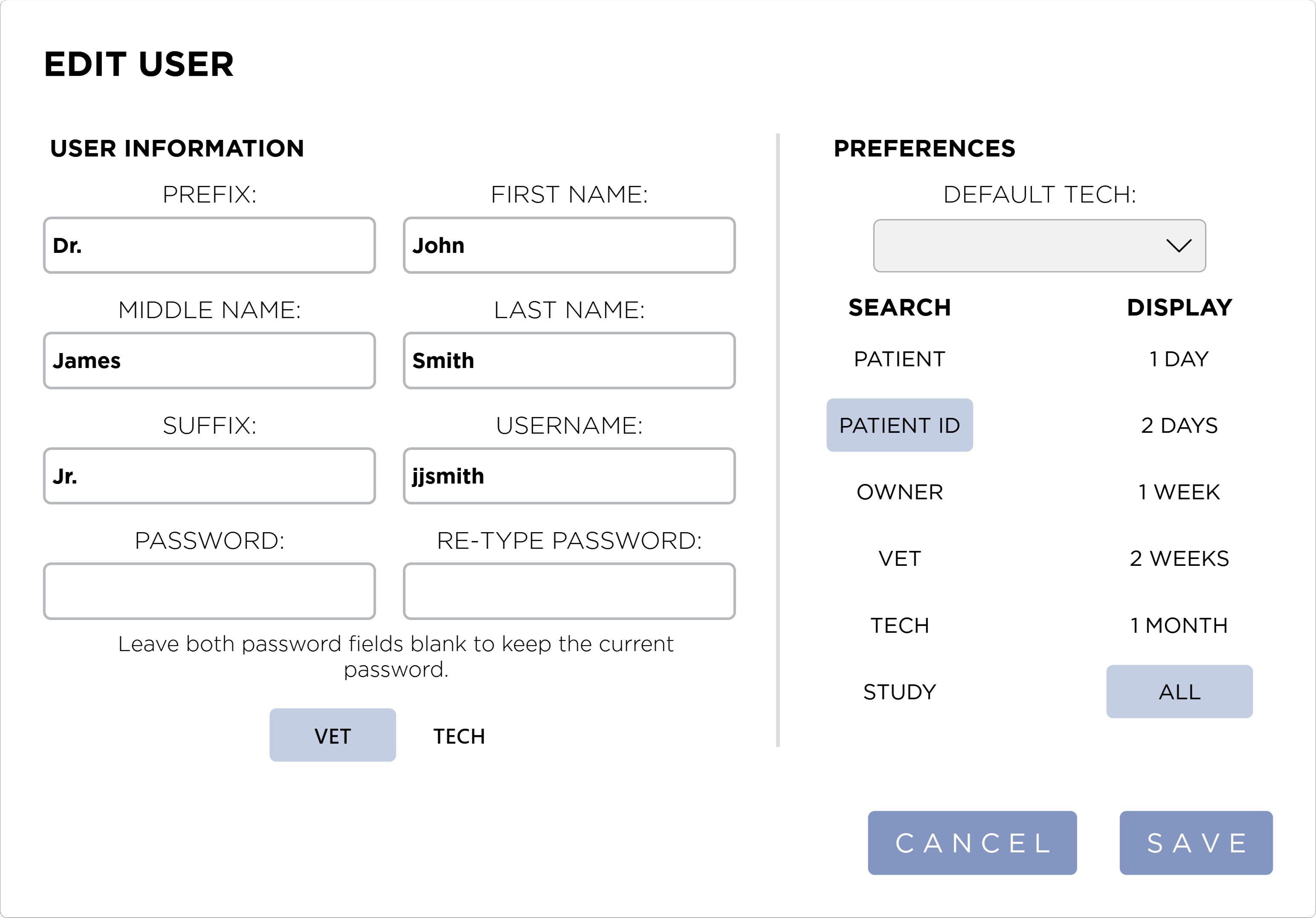
Now edit the fields you want to change. Press the Save button to save your changes. You can edit the First Name, Last Name, Prefix, Suffix, Username, and User Role (Vet or Tech). Pressing the Cancel button will close the dialog without saving.
Changing the name of a user will change the name that is put into the DICOM Tags for image export.
Vet and Tech users can only edit their own information. The Sound user can edit all users.
Change Password
To change the password, enter the new password in both fields. Leave both fields blank to keep the existing password.
User Preferences
Edit the user preferences as needed. See the User Preferences section above for more information.
Delete a User
You can delete a user by selecting the user from the list, then press the Delete button. A dialog will be shown.
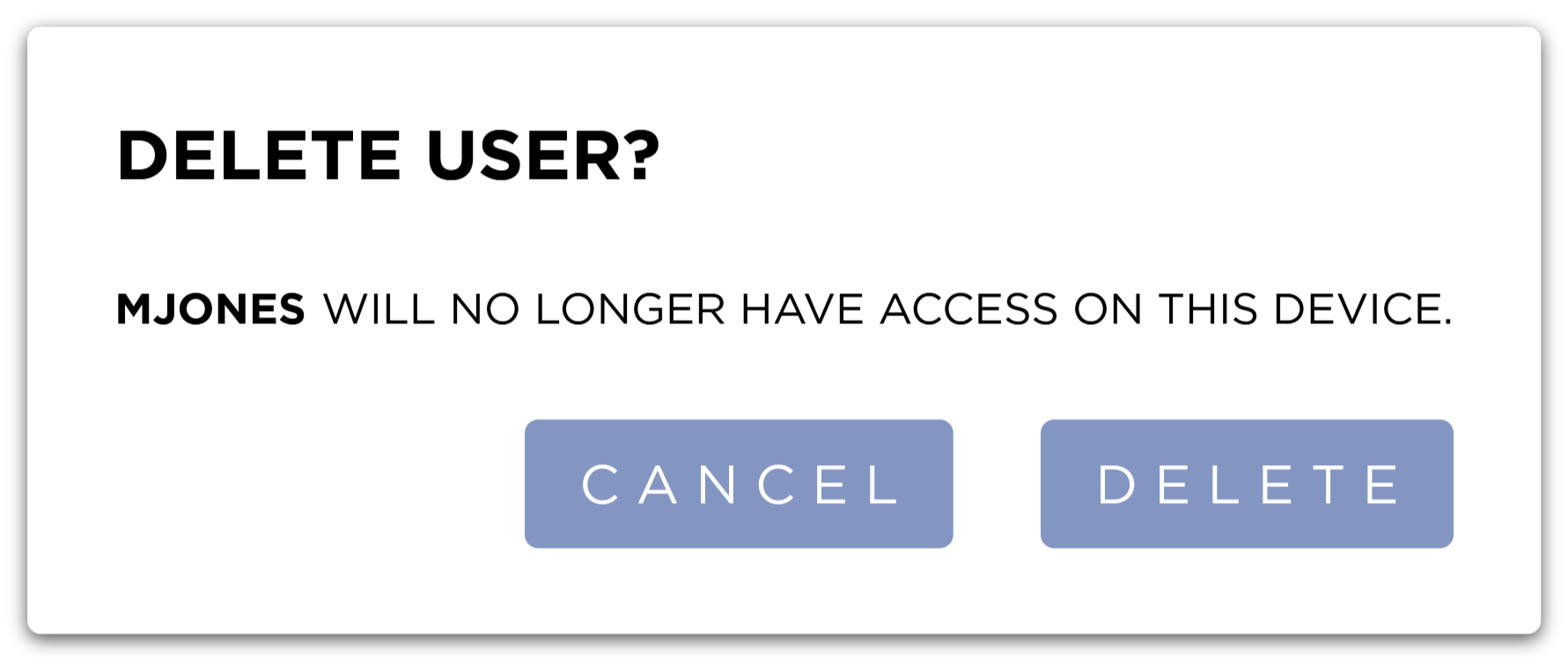
Press the Delete button to delete the user. Pressing the Cancel button will close the dialog without saving.
The default Sound user cannot be deleted.
Only the Sound user can Delete users.